How to Create Citations in the Citation Generator
Updated
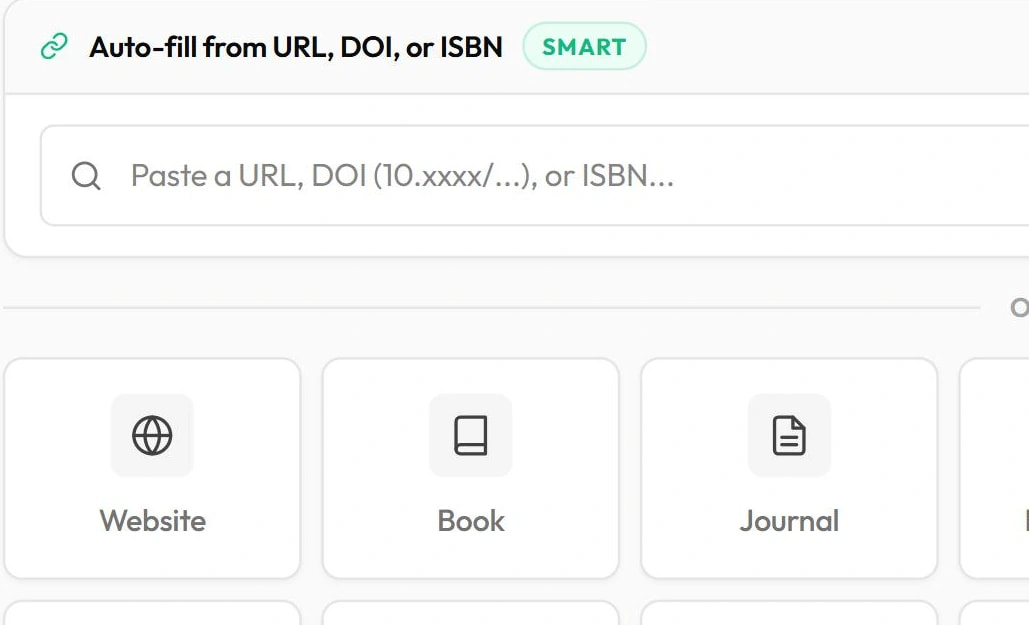
In the web app, click Citations in the left sidebar and create a project with New. Paste a web address, DOI or ISBN into Auto-fill from URL, DOI, or ISBN and click Add, or pick a source type such as Book or Journal to type the details yourself. Choose a style from the Style menu — APA 7, MLA 9, Chicago 17, Harvard and 11 more — then Copy a citation or Copy all.
Create citations in a project
- Sign in at app.plagiarismcheckerplus.com and click Citations in the left sidebar.
- Under Projects, click New. A project called Untitled Project is created — use Rename in the project list to give it a name.
- Pick a citation style from the Style menu.
- Paste a URL, a DOI (such as 10.xxxx/…) or an ISBN into the Auto-fill box and click Add (or press Enter). The generator looks up the details and you’ll see Citation added.
- No link? Under or add manually by source type, choose a type, fill in the fields and click Save citation.
- Check each citation. Edit opens its details; All formats shows it in every style, each with its own Copy button.
- Click Copy on a citation, or Copy all to copy the whole list in the project’s style.
Supported styles
APA 7, MLA 9, Chicago 17, Harvard, Vancouver, IEEE, AMA, Turabian 9, CSE, ACS, ASA, APSA, Oxford and ABNT, plus BibTeX. Changing the Style reformats every citation in the project. Each project keeps its own style, so an APA project and an MLA project can sit side by side.
Adding a source by hand
The source types are Website, Book, Journal, News Article, Video, Podcast, Thesis, Conference, Report and Film / Movie. The form asks for the fields that type needs — title, authors (first and last name, with Add author for more), the site or publisher, the publication date, and where relevant the URL and access date, DOI, ISBN, volume and pages.
Export and manage
- Export .bib downloads the project as a BibTeX file for reference managers and LaTeX.
- Projects save automatically — the header shows Auto-saved.
- The trash icon on a citation deletes it. Delete in the project list removes a project and all its citations.
- Citations you save from the Chrome™ extension’s Cite tab with Save to a project appear here too. See How to cite a website.
Tips for accurate citations
- Prefer a DOI for journal articles. DOI records are usually more complete than web page details.
- Always review the details. Pages don’t always publish an author or date in a way that can be read. If you see Could not fetch metadata — try adding manually below., add the source by hand.
- Add in-text citations yourself. The generator creates reference entries; put the matching (Author, Year) or footnote in your sentence.
- Follow your instructor’s version. Harvard in particular varies between institutions.
Just need one quick citation without signing in? Try the free citation generator on our website. Writing in Google Docs™? The add-on can insert citations into your reference list — see How to add citations in Google Docs.