How to Read Your Plagiarism Report
Updated
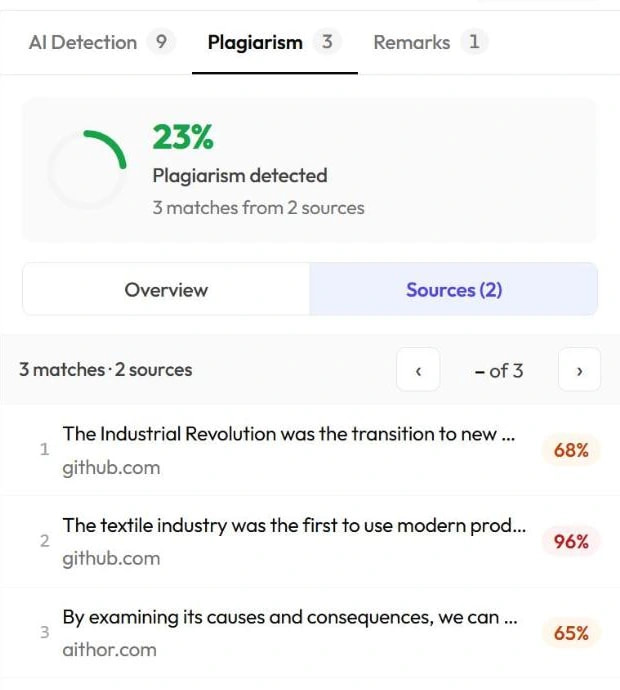
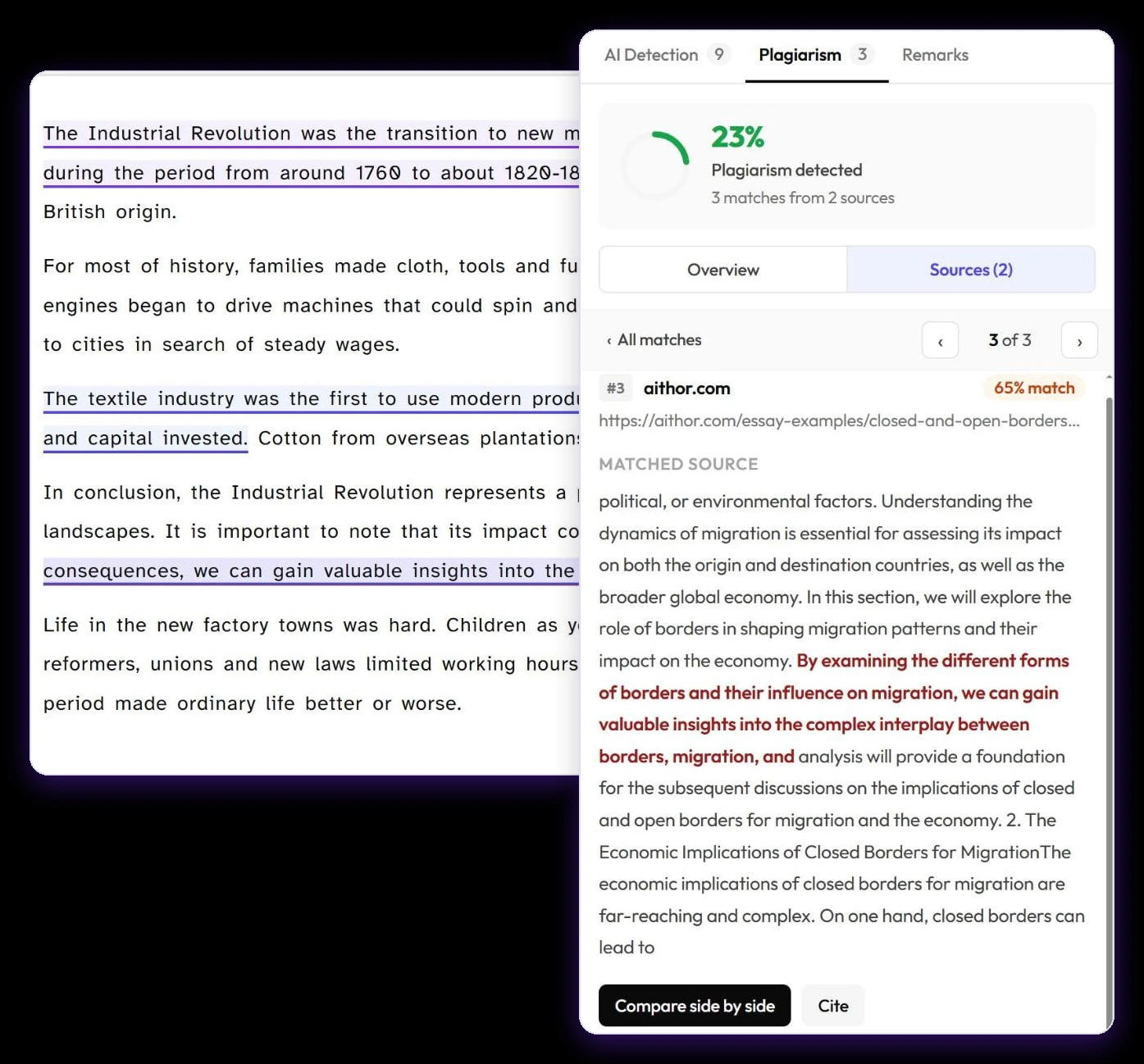
A Plagiarism Checker Plus report shows your text on the left and the results on the right. The Plagiarism tab gives the overall score (for example 23% Plagiarism detected · 3 matches from 2 sources), then each matched passage with its website and a percentage. Click a match to see the source’s wording with the matching part marked, and click Compare side by side to read your text and the source together.
The parts of a report
- Your text on the left. Matched passages are underlined, and each source has its own colour so you can tell them apart.
- The results panel on the right, with AI Detection, Plagiarism and Remarks tabs. The number on each tab shows how many sentences, matches or remarks it holds.
- The toolbar along the top: Find, text size, Display, Review / Edit, Share, PDF and Rescan.

The score, Sources and Overview
The score card shows how much of your text matches other sources, and how many matches and sources were found. Below it, switch between two views:
- Sources — every match as a numbered row: the start of the matched passage, the website it matches and a percentage.
- Overview — a Breakdown with one row per website, how many matches it has and its highest percentage. Click a row to open that site’s first match.
Percentages are colour-coded: red for 80% and above, orange for 50–79%, yellow for 25–49% and green below 25%.
Look at a single match
- Click a match in the list, or click an underlined passage in your text.
- Read the detail: the match number, the website, its % match, the page address (click it to open the page) and, under Matched source, the source’s wording with the matching words marked.
- Click Compare side by side to see Your text next to the Matched source. Open source ↗ opens the page; press Esc or click × to close the comparison.
- Step through matches with the ‹ and › buttons or the J and K keys. ‹ All matches (or Esc) takes you back to the list.
Decide what each match needs
- A quotation you forgot to mark. Add quotation marks and a citation.
- A paraphrase that stayed too close to the original. Rewrite it in your own words and structure, and still cite the source.
- A source you used but didn’t cite. Click Cite to create the citation — see How to cite a source from a plagiarism match.
- A common phrase or technical term. Short, generic matches are normal and usually need no change.
Other tools in the report
- Find (Ctrl+F, or ⌘F on a Mac) searches your text.
- A, A+ and A++ change the text size, and Display opens display and accessibility settings.
- Rescan runs a new check on the text. It uses words again.
- Share and PDF — see How to share a report or download a PDF.
- Select any passage to leave a comment — see How to add remarks to a report.
If you excluded quotes or your reference list, a line above the text says Not checked: and what was left out, with the number of words. Excluded text isn’t shown in the report, so that report can’t be edited.